
Keyboard and mouse
A game you can't control is just a film. Here's how to read the keyboard and the mouse, and make things move the way the player wants.
Flying a ship
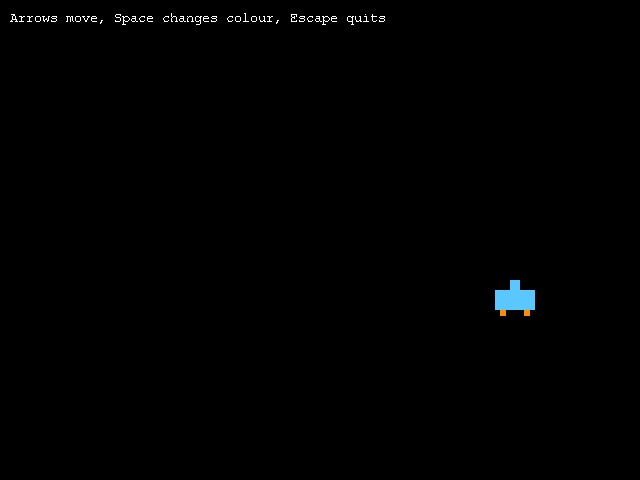
; Moving a ship with the keyboardGraphics 640, 480SetBuffer BackBuffer()x = 300 : y = 400speed = 5r = 90 : g = 200 : b = 255While Not KeyHit(1) ; arrow keys: held down = keep moving If KeyDown(203) Then x = x - speed ; left If KeyDown(205) Then x = x + speed ; right If KeyDown(200) Then y = y - speed ; up If KeyDown(208) Then y = y + speed ; down ; space: pressed once = one change If KeyHit(57) Then r = Rand(50, 255) : g = Rand(50, 255) : b = Rand(50, 255) ; stay on the screen If x < 0 Then x = 0 If x > 600 Then x = 600 If y < 0 Then y = 0 If y > 450 Then y = 450 Cls Color r, g, b Rect x, y + 10, 40, 20 ; body Rect x + 15, y, 10, 10 ; cockpit Color 255, 140, 0 Rect x + 5, y + 30, 6, 6 ; flames Rect x + 29, y + 30, 6, 6 Color 255, 255, 255 Text 10, 10, "Arrows move, Space changes colour, Escape quits" FlipWendEnd
KeyDown and KeyHit
Each key has a number called its scancode. The arrow keys are 200 (up), 208 (down), 203 (left) and 205 (right), Space is 57 and Escape is 1. There's a full list and a scancode picker where you click a key to find its number.
KeyDown(203)is true for as long as the key is held down. That's what you want for moving: hold left, keep going left.KeyHit(57)counts how many times the key has been pressed since you last asked. That's what you want for things that should happen once per press, like firing or jumping. Here it changes the ship's colour once each time you press Space, however long you hold it.
ArcBasic also has names for keys, so KeyDown(KEY_LEFT) does the same as KeyDown(203), and KEY_SPACE is 57. There are names for the mouse buttons and many other numbers too: see the built-in constants.
After moving, four Ifs keep the ship on the screen: if it has gone too far, it's put back at the edge.
The mouse
; A pet that follows the mouseGraphics 640, 480SetBuffer BackBuffer()x# = 320 : y# = 240size = 40While Not KeyHit(1) ; move a tenth of the way to the mouse each frame: quick when far, gentle when close x = x + (MouseX() - x) * 0.1 y = y + (MouseY() - y) * 0.1 ; left click makes it bigger, right click smaller If MouseHit(1) And size < 120 Then size = size + 10 If MouseHit(2) And size > 20 Then size = size - 10 Cls Color 120, 230, 120 Oval x - size / 2, y - size / 2, size, size ; eyes that look at the mouse Color 255, 255, 255 Oval x - size / 4 - 6, y - size / 4, 12, 12 Oval x + size / 4 - 6, y - size / 4, 12, 12 Color 0, 0, 0 Oval x - size / 4 - 3 + (MouseX() - x) * 0.02, y - size / 4 + 3, 6, 6 Oval x + size / 4 - 3 + (MouseX() - x) * 0.02, y - size / 4 + 3, 6, 6 Color 255, 255, 255 Text 10, 10, "Move the mouse. Left click: grow. Right click: shrink." FlipWendEnd
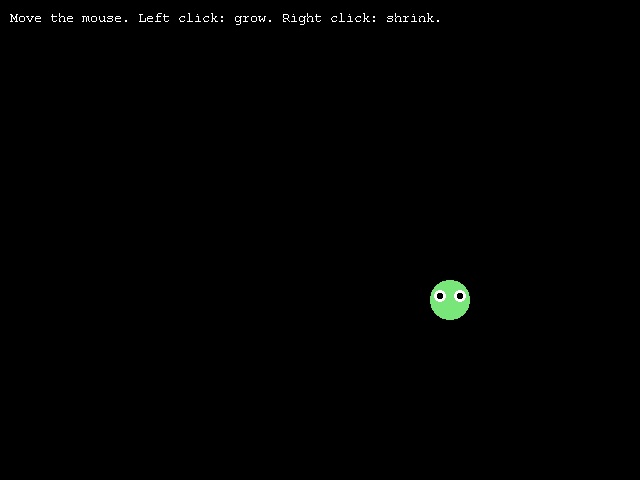
MouseX() and MouseY() say where the mouse pointer is. MouseHit(1) counts clicks of the left button and MouseHit(2) the right; MouseDown(1) is true while the button is held.
The pet doesn't jump straight to the mouse. Every frame it moves a tenth of the way there, so it rushes when it's far away and slows as it arrives. This trick makes movement feel smooth and natural, and it's used everywhere in games, especially for cameras.
Try this
- Make the ship go faster while Shift is held. (Left Shift is scancode 42.)
- Let the ship wrap around: going off the right edge brings it back on the left.
- Change the pet's 0.1 to 0.02, then to 0.5. What feels best?
- Draw a trail: take out the pet's
Clsand give it a new random colour each frame.